


UE4 hair groom alembic set up notes
- ychen3129

- Jan 25, 2022
- 1 min read
Make sure to turn on the Groom and Alembic Groom Importer plugin, Niagara


Project setting: Support Compute Skin Cache

__________________________________________________________________________________________
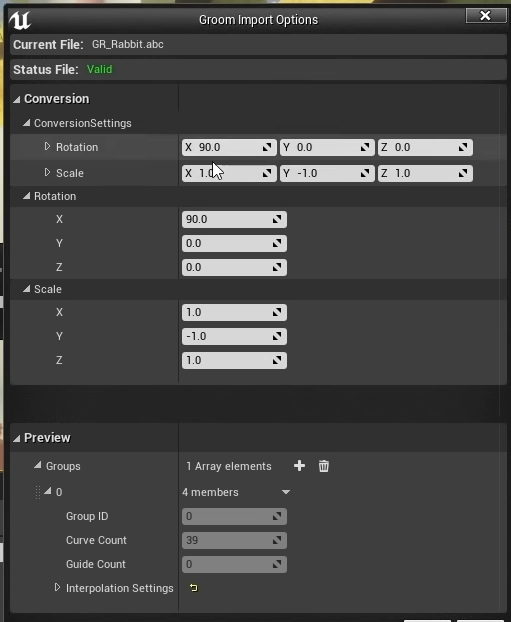
Import setting
Rotate 90 degrees on x
scale Y to -1
Attach your groom to your character by adding your groom component to your actor

Then Drag and drop your groom asset to your groom component

For adjusting the hair
You can open the groom asset
go to the strands tab
manipulate the parameters there

use stable rasterization for the short hairs, that you can see through the hair to reveal the skin
__________________________________________________________________________________________
material for the hair
When creating material for your hair
utilize those attributes from your groom base color hair UV, seed, root UV, length... attributes

You can preview these attributes in the viewport of your groom asset
For materials set up
make sure the shading mode is hair

use of hair strands is turned on

access those attributes through the hair attribute node

another useful node is the hair color node

Material Examples


__________________________________________________________________________________________
Skinning
after done with setting up the material, it is time for binding the hair to your skin
right-clicking the groom asset, creating binding

Then just find your skeleton mesh to bind

Debug

r.HairStrands.debugMode 12
r.HairStrands.MeshProjection.Sim.Deofrmed.Triangles = "1"
__________________________________________________________________________________________
Simulation
open your groom asset, go to its physics tab
enable simulation
Play with those settings

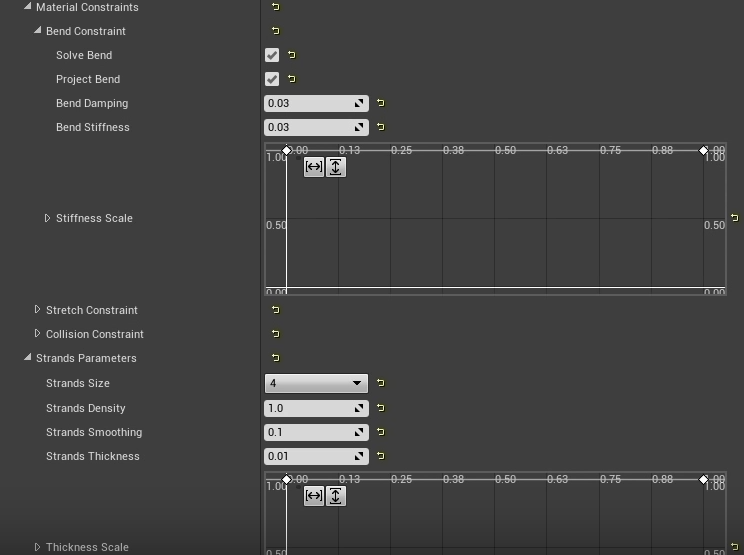
It simulates the guides with Niagara System

r.HairStrands.StrandsMode =1
And don't forget to set up your collider in your physic asset first

________________________________________________________________________________________
CVars
r.HairStrands.Voxelization.Virtual.VoxelWorldSize = "0.23"
r.HairStrands.Voxelization.Virtual.VoxelPageCountPerDim = "12"
r.HairStrands.Voxelization.Virtual.VoxelPageResolution = "64"
r.HairStrands.Voxelization.Raymarching.SteppingScale.Transmission ="6"
r.HairStrands.Voxelization.Raymarching.SteppingScale.Shadow = "4"
r.HairStrands.DOFDepth = "0"
r.HairStrands.DeepShadow.SuperSampling = "1"
__________________________________________________________________________________________
LOD System
Authoring in your DCC
Stand>Card>Mesh
or
Generate in UE4
use the plus icon on the right

for cards, you can try
procedural method (it is experimental)

______________________________________________________________________________________
Reference:


Comments